
Help
How to use sms2work, step by step
Every step of the app, from registering to a completed, paid and rated job. The screens come from the demo app on a phone. Tap a step’s title to link straight to it.
For workers
Register for free, get job requests by SMS or WhatsApp, and build a work record that moves you up the colour levels.
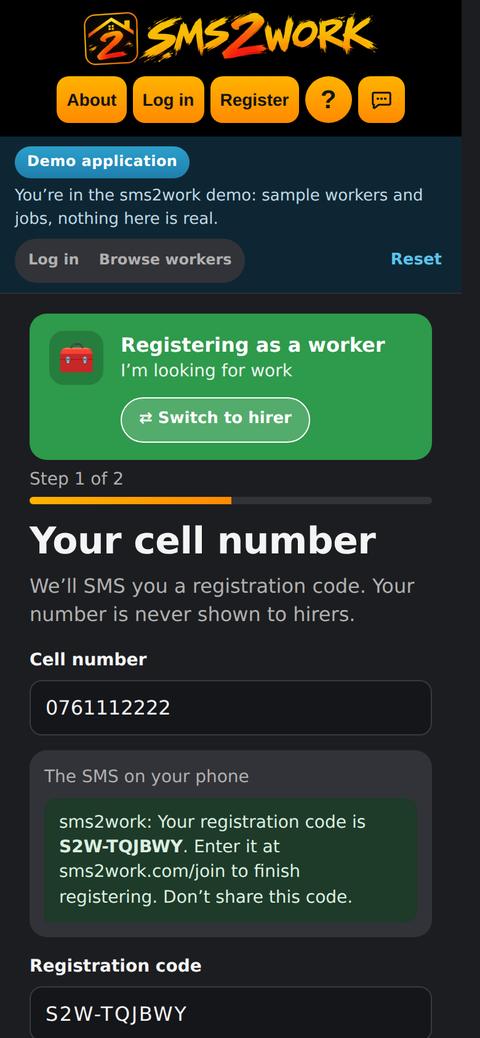
Register with your cell number
Tap Register, then Register as a worker. Enter your cell number. sms2work sends a registration code by SMS; type it in to continue.
Register as a worker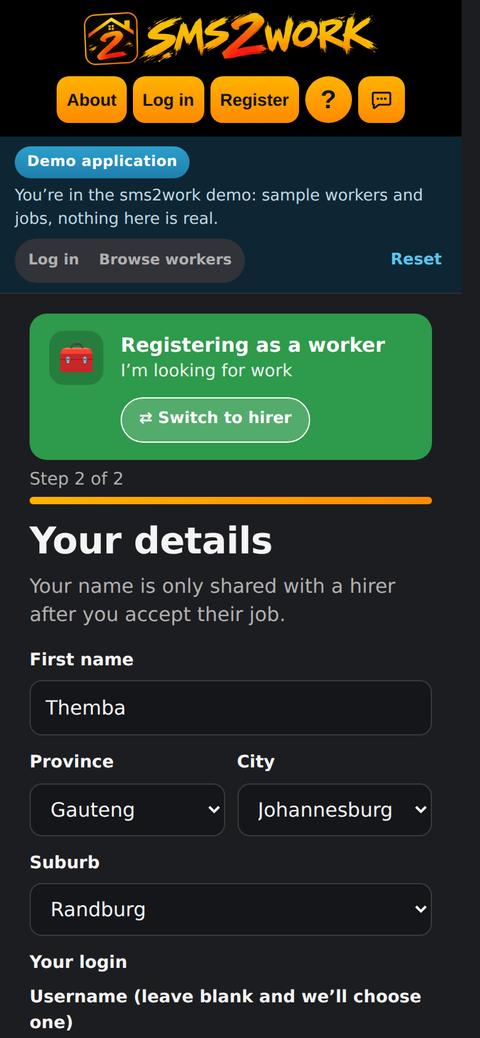
Add your details on one screen
Your name, area, login, the work you do and your day rate, all on one screen. Your ID is optional. Your name is only shared with a hirer after you accept a job.
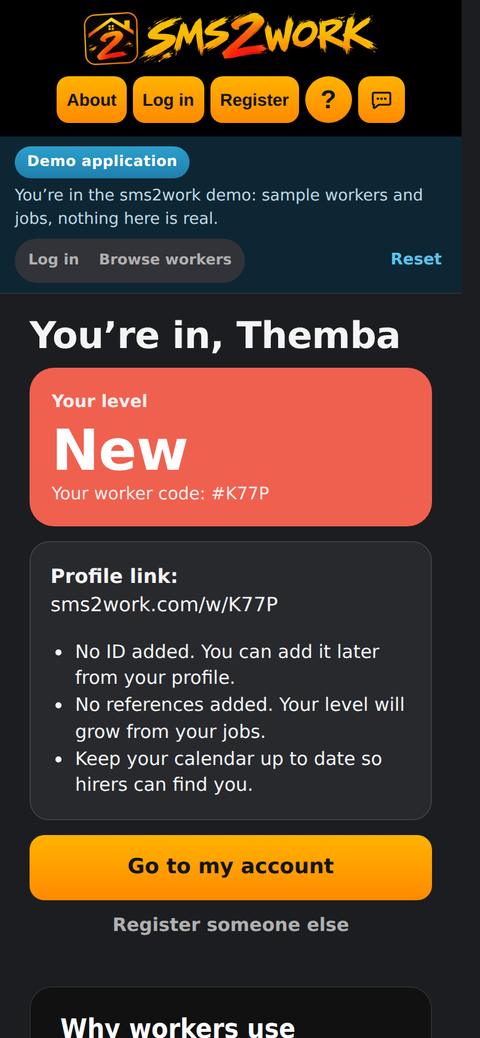
Get your worker code
You start at New (red). Hirers only ever see your code, level and ratings, never your name or number.
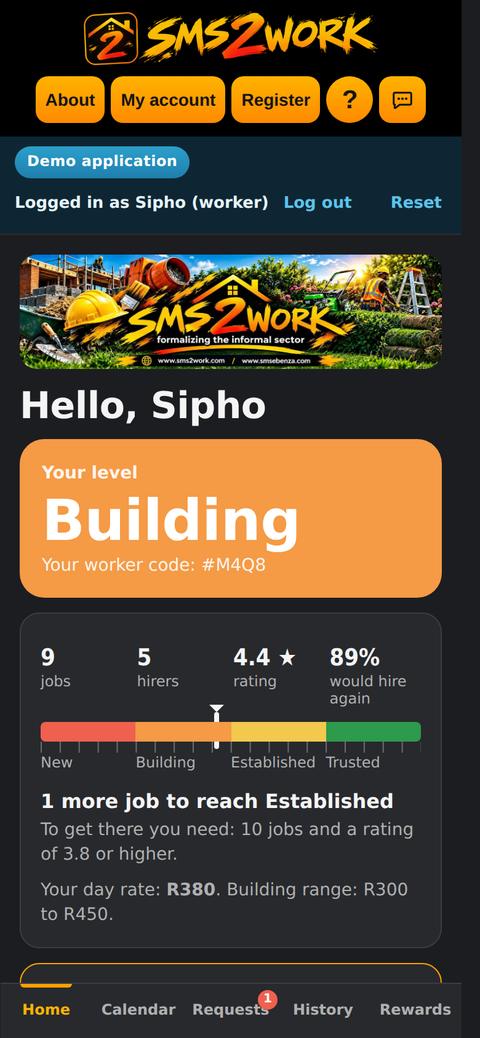
Your home screen
Your level, your record and what you need for the next colour. Each new colour opens a higher day-rate range.
Try as a worker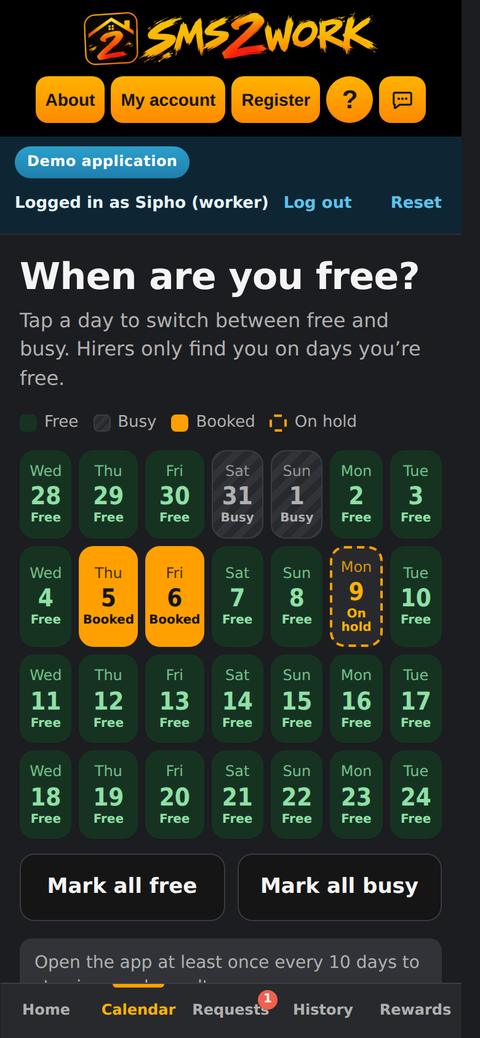
Keep your calendar up to date
Tap a day to switch it between free and busy. Hirers only find you on days you’re free, and booked days lock automatically.
Open the calendar in the demo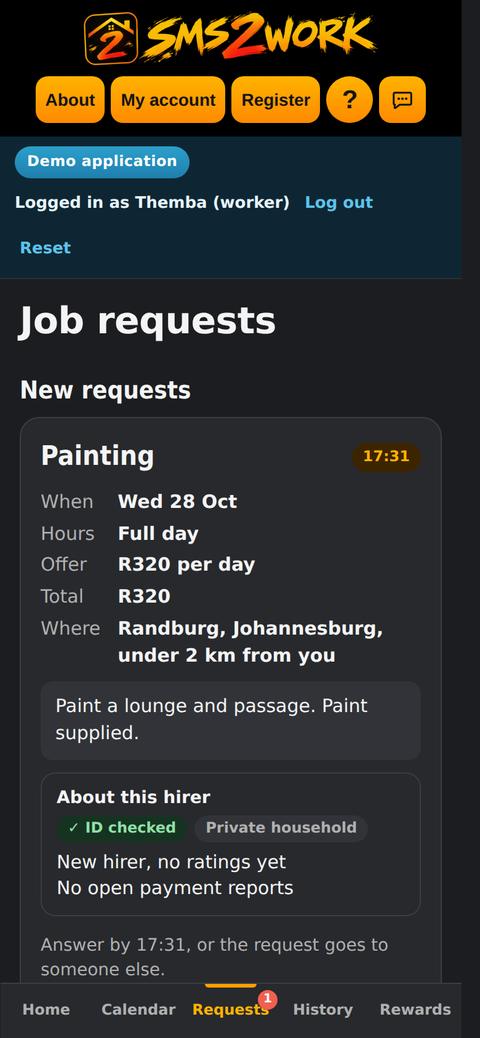
A job request arrives
See the work, the days, the day rate and the hirer’s reputation. Answer before the time shown, or the request goes to someone else.
See a request in the demo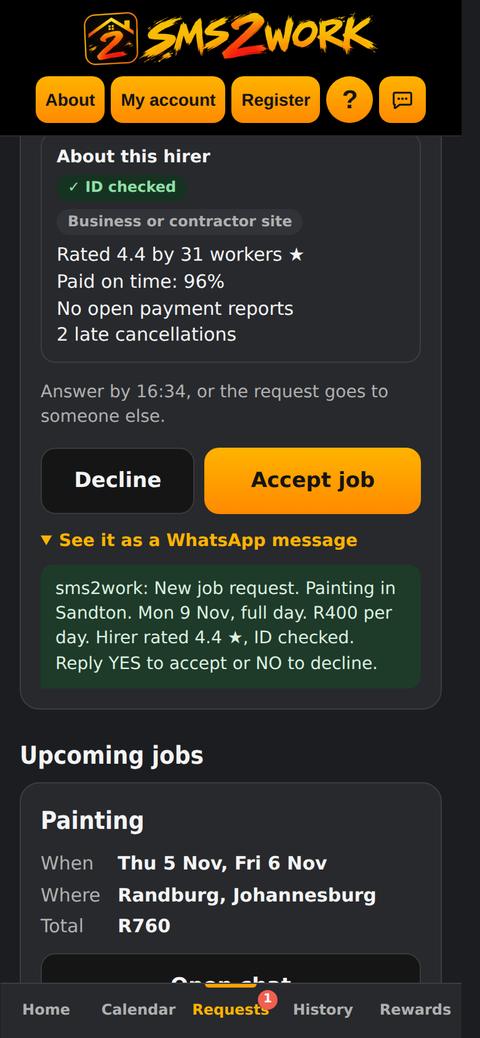
Or answer by WhatsApp or SMS
The same request comes to your phone. Reply YES to accept or NO to decline. No data needed.
Accept and chat
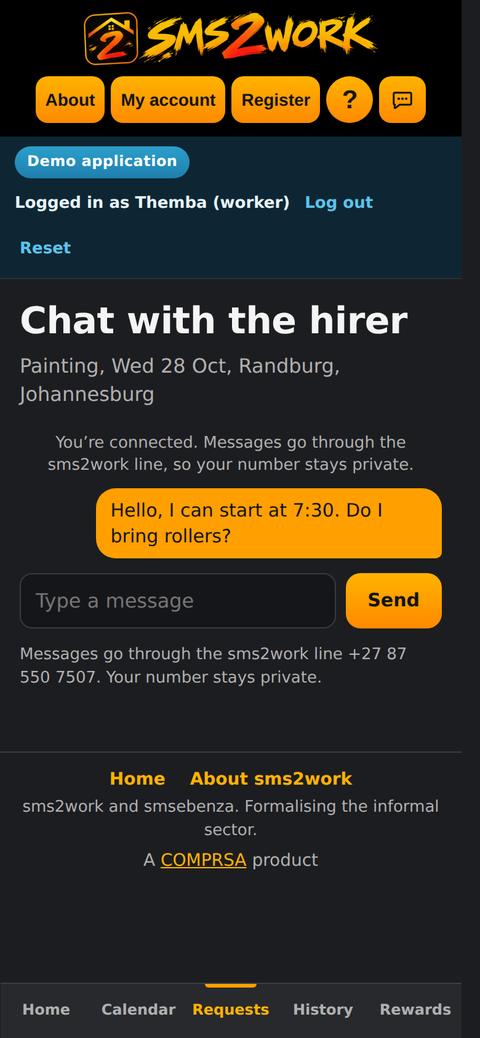
Once you accept, the day is booked in your calendar. Chat with the hirer through the sms2work line; your number stays private.
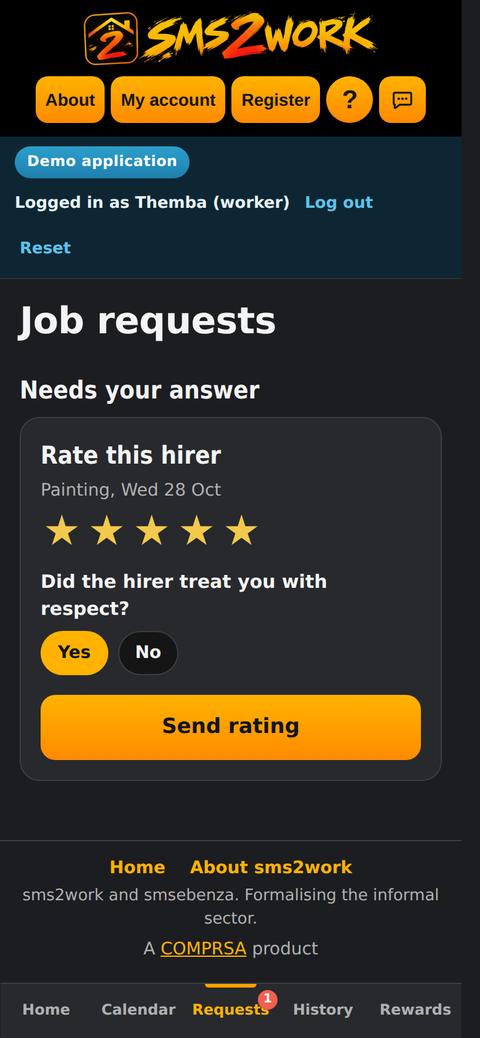
Confirm payment and rate the hirer
After the job, confirm you were paid and rate the hirer. Both sides rate each other.
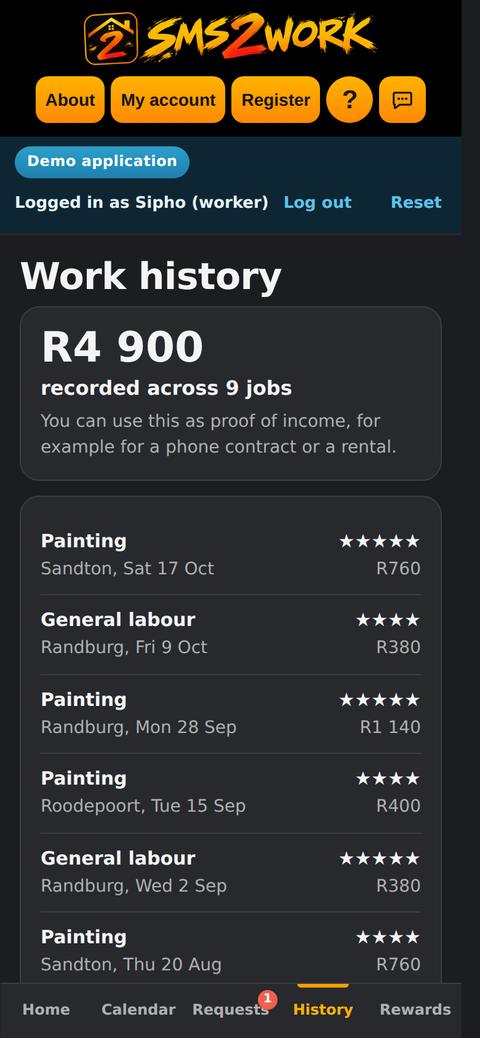
Your work history
Every paid job and its rating is on your record. Use it as proof of income, for example for a phone contract or a rental.
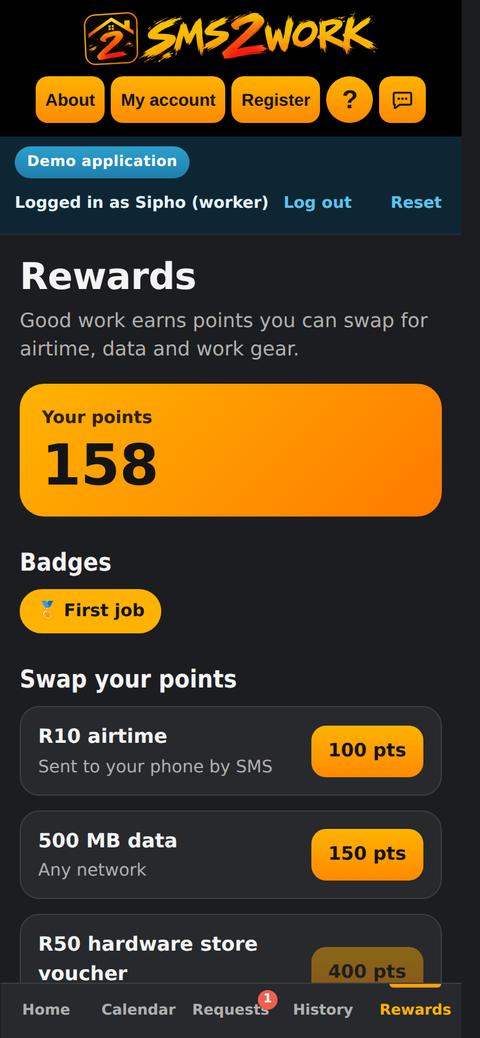
Rewards
Completed, paid jobs and good ratings earn points. Swap points for airtime, data, hardware vouchers and work gear.
For hirers
Find rated workers near you, send a request, and pay directly when the job is done.
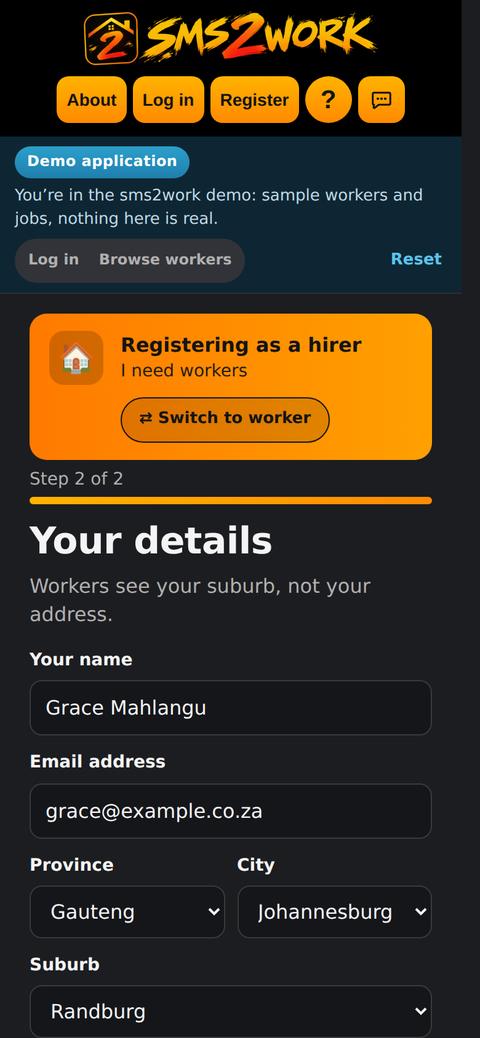
Register with an ID check
Tap Register, then Register as a hirer. Enter your cell number and SMS code, then your details. Every hirer passes an ID check before the first booking.
Register as a hirer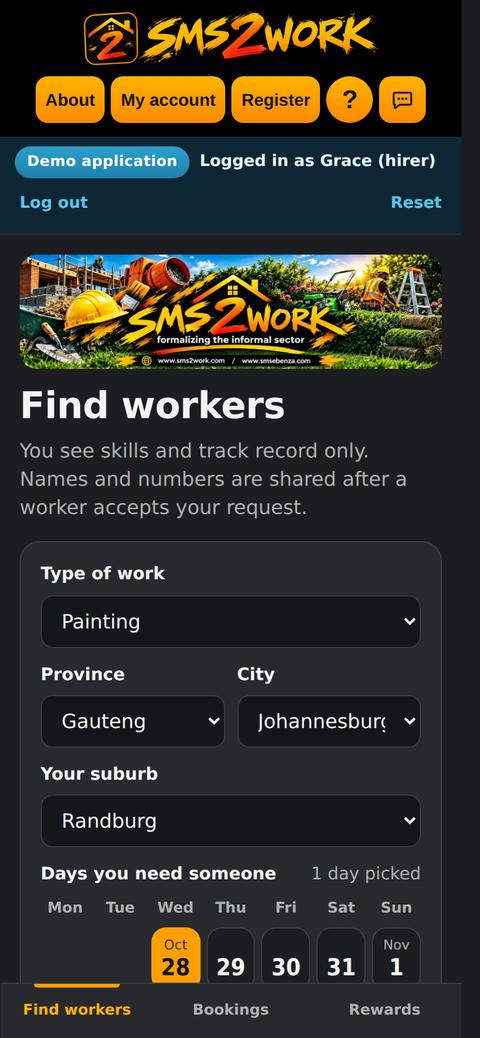
Find workers
Choose the type of work, your area and the days you need someone. Filter by colour level, tools and day rate.
Try as a hirer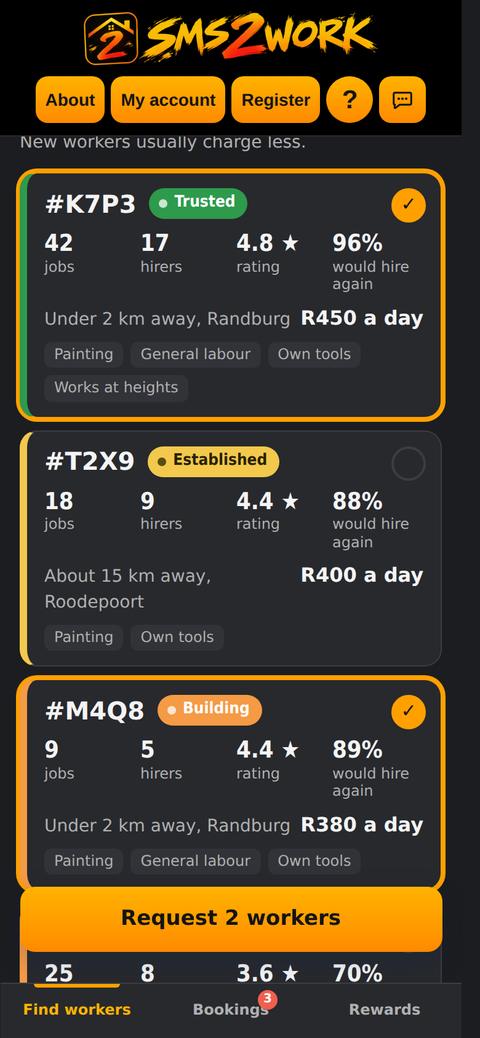
Choose one or more workers
Each worker shows a code, level, jobs, rating and day rate. Tap to select, then request one worker for a day or a team for a week.
Send the job request
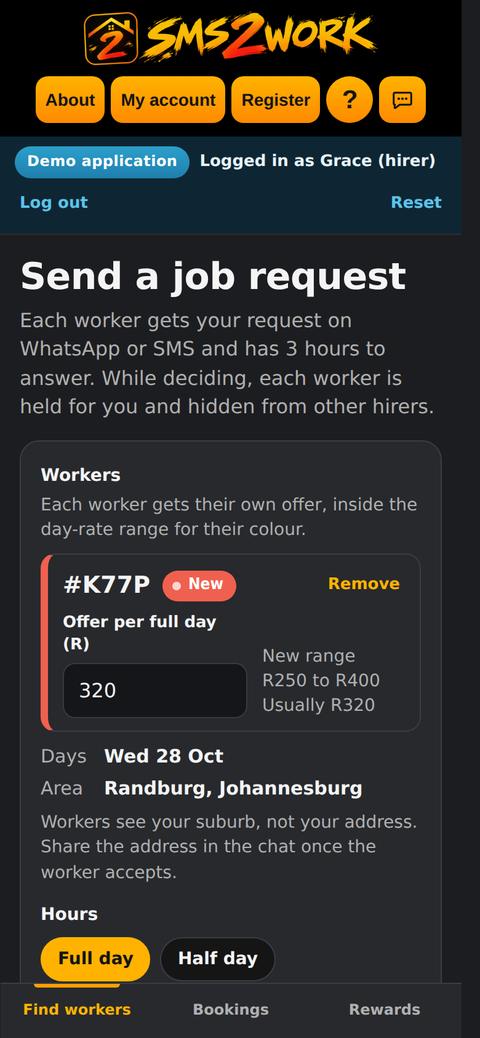
Describe the job and make an offer within the worker’s range. Each worker gets the request on WhatsApp or SMS and has 3 hours to answer.
Wait for an answer
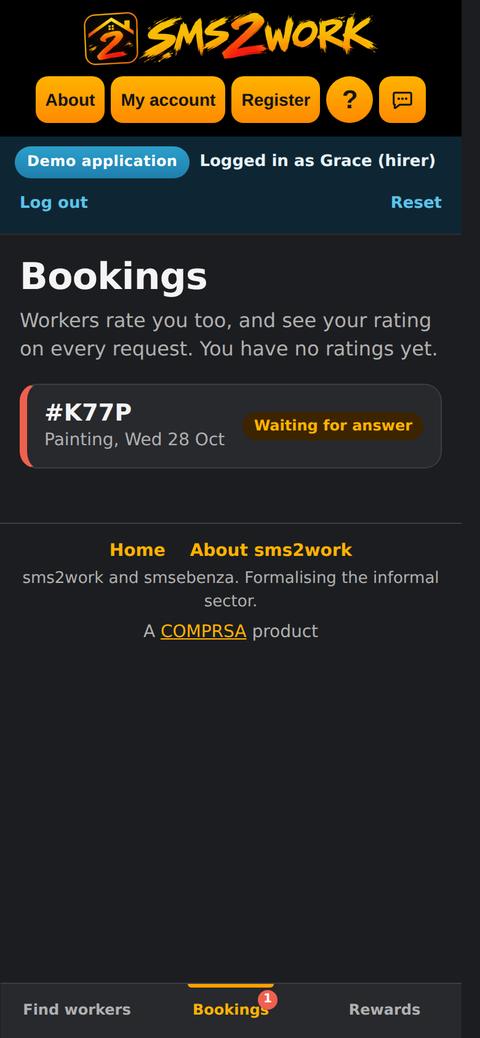
Bookings shows each request as waiting. While a worker decides, that worker is held for you.
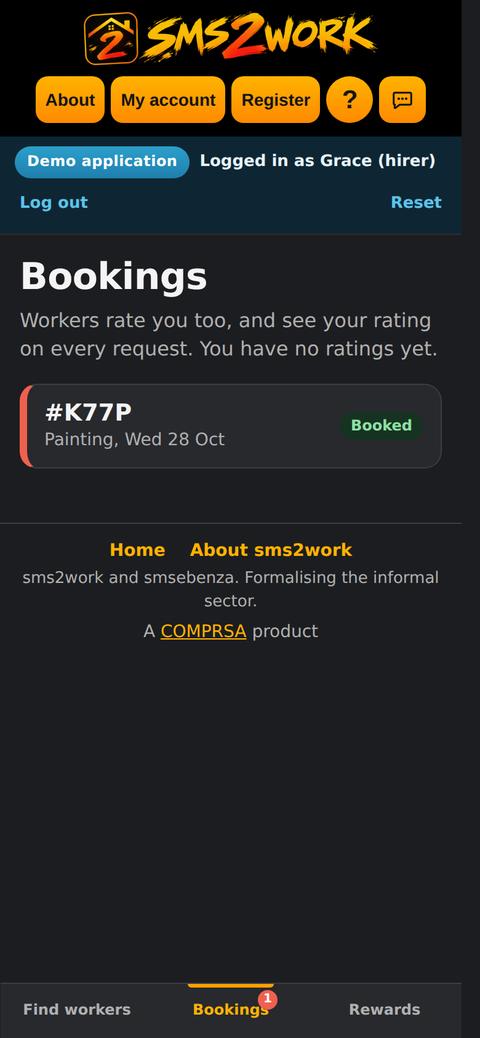
Booked
When a worker accepts, the request shows as Booked. Names and numbers are shared, and you can chat through the sms2work line.
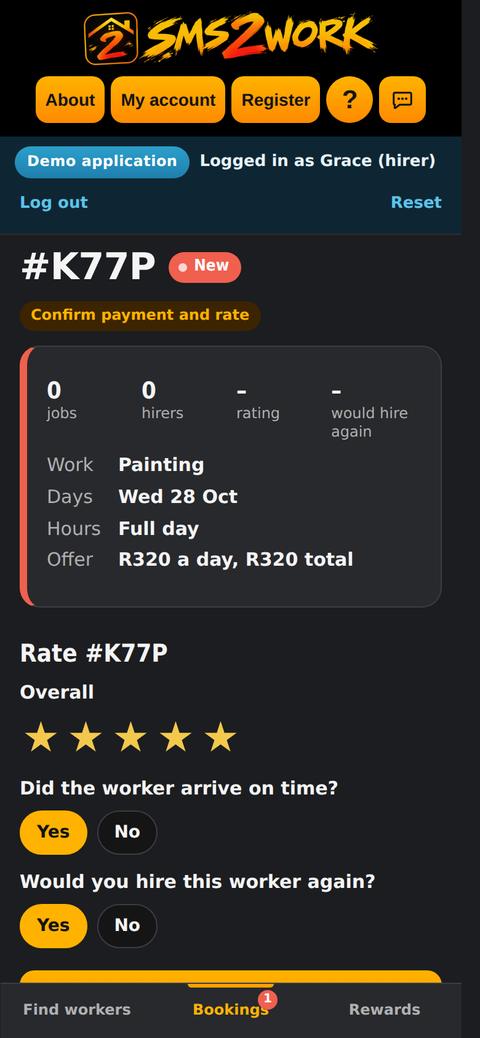
Finish, pay and rate
Pay the worker directly, in cash or to the worker’s phone. Record the amount and rate the work.
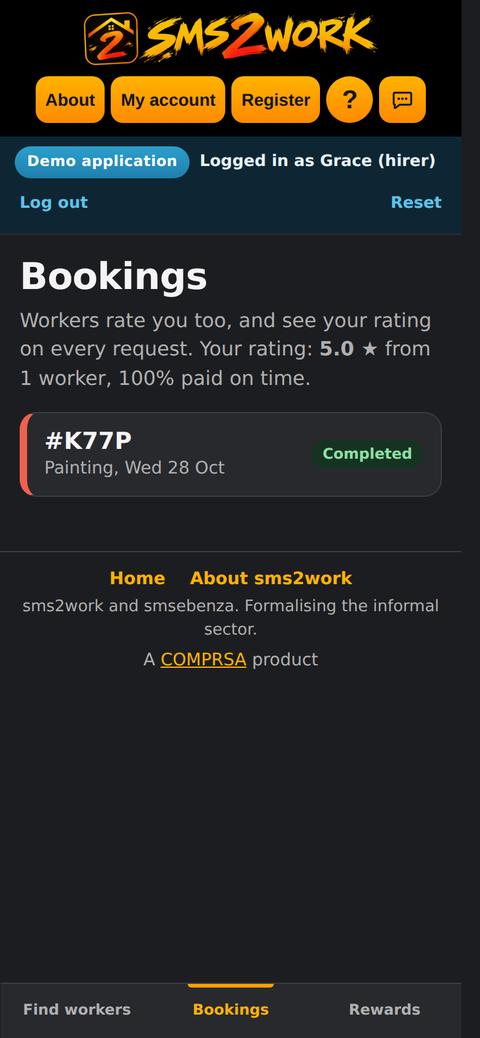
Completed
Once the worker confirms payment, the booking shows Completed. Your own rating from workers appears on every request you send.
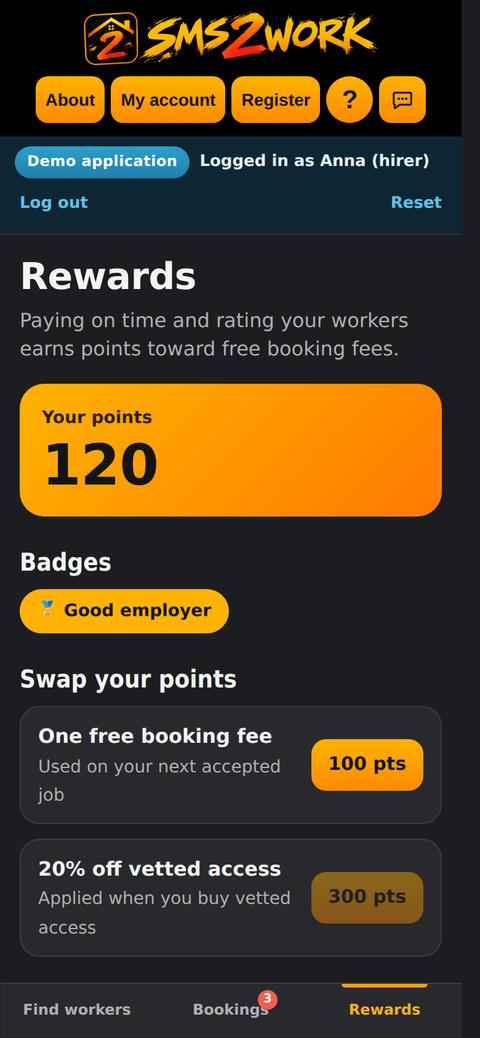
Rewards for good employers
Paying on time and rating every job earns points toward free booking fees and a Good employer badge.
Log in and help
Getting into your account, and where to find more help.
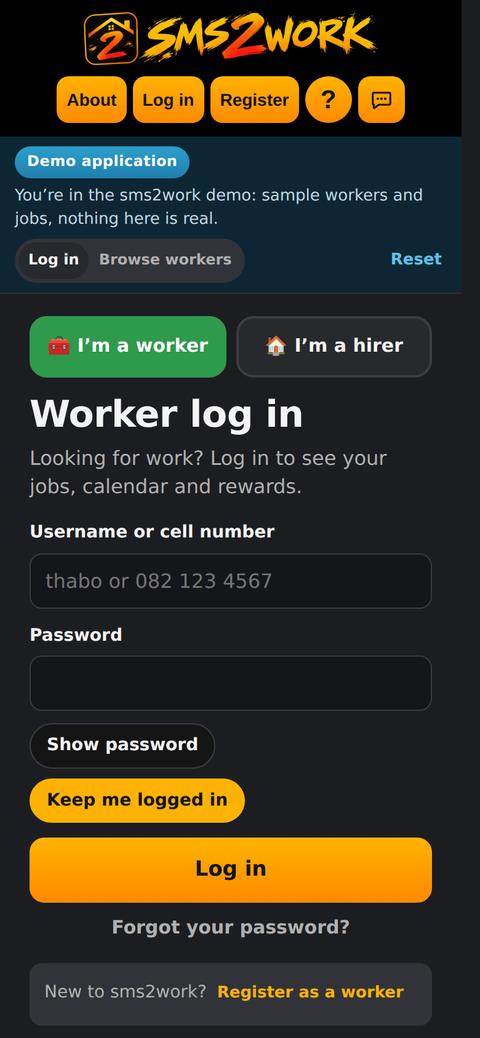
Forgotten password
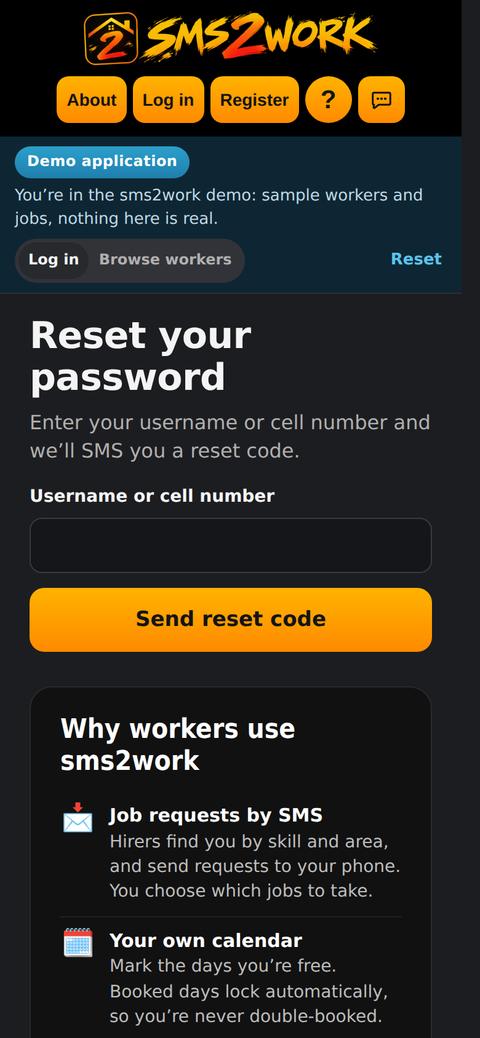
Tap Forgot your password? and enter your username or cell number. A reset code comes by SMS.
Reset your password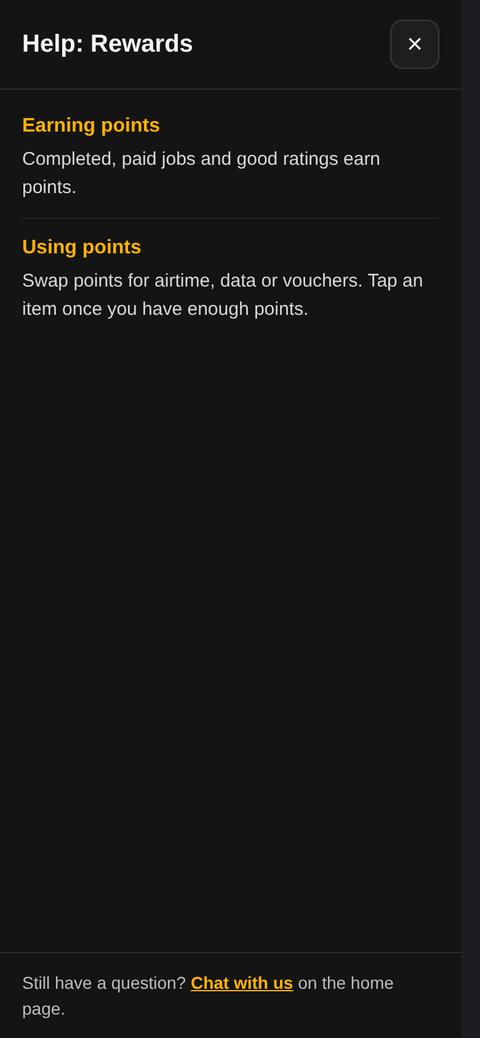
Help on every screen
Tap ? in the top menu for help written for the screen you’re on.
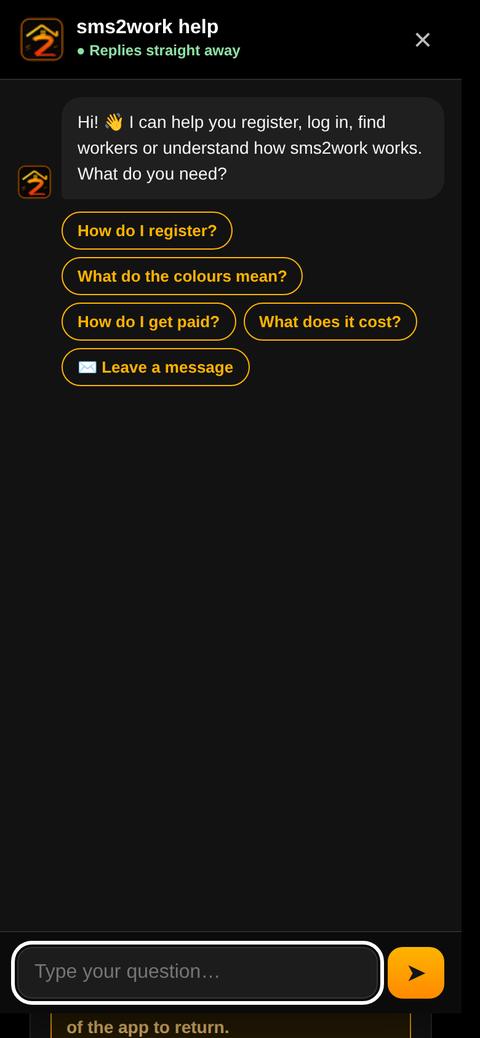
Chat with us
Tap the chat icon in the top menu for quick answers, or leave a message and the sms2work team will SMS or call you back.
Chat with us
